The connector is not listed in a chat
Open the conversation's plus menu, select Connectors, and enable RingMyHuman for that conversation.
Add the hosted RingMyHuman MCP endpoint as a Claude custom connector, authenticate in your browser, and give a conversation access to the Ringflows you control.
Create an account, verify at least one call contact, and confirm that the Ringflow you want to use is active. Copy the MCP URL from the dashboard.
In Claude, open Customize, choose Connectors, and select Add custom connector. Team and Enterprise owners use Organization settings, then Connectors.
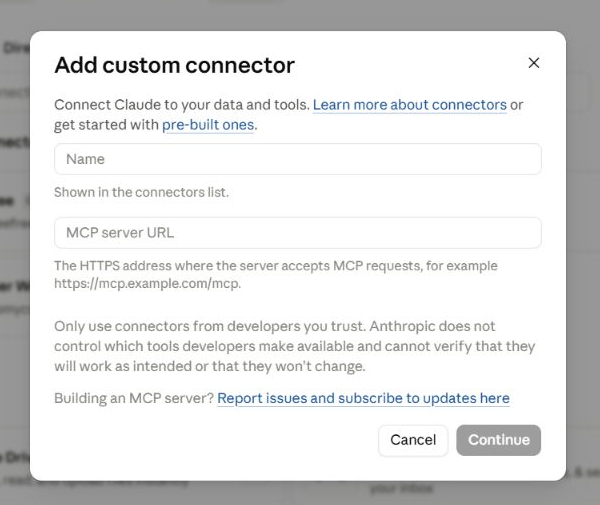
Use RingMyHuman as the name and paste the endpoint below into MCP server URL. No client ID or client secret is needed for the normal browser sign-in flow.
Name: RingMyHuman
MCP server URL: https://mcp.ringmyhuman.com/mcpContinue, choose Connect, and complete the RingMyHuman sign-in window. Review the requested permissions before approving access.
In a Claude conversation, open the plus menu, choose Connectors, and enable RingMyHuman. Ask Claude to list your active Ringflows before placing a call.
Confirm the intended Ringflow, recipients, and limits first. Then make one controlled request and poll its request ID until the result is final.
List my active RingMyHuman Ringflows and show which contacts each one will call.
Use the Alexa Hackathon Research Control Ringflow to ask whether I want this hourly task to continue or pause. Return the request ID and poll until the decision is final.
Open the conversation's plus menu, select Connectors, and enable RingMyHuman for that conversation.
Reconnect RingMyHuman from Customize, then Connectors. A revoked or expired authorization cannot be restored by pasting a token into chat.
Ask Claude to list Ringflows first, then name the Ringflow explicitly. If no Ringflow is supplied, RingMyHuman safely uses the account's default Ringflow.